
This comprehensive guide explains how to delete Google Analytics accounts or properties securely. It covers prerequisites, step-by-step instructions, troubleshooting, and best practices for data management, ensuring a clean and efficient analytics setup for better decision-making and compliance.
Managing your digital analytics infrastructure is just as important as the data it collects. Over time, businesses evolve, websites are decommissioned, and projects are merged. You might find yourself staring at a cluttered dashboard filled with obsolete data streams. Knowing how to delete Google Analytics accounts or properties is essential for maintaining a clean, efficient, and secure workspace.
However, the process isn’t always as simple as hitting a “delete” button. Google Analytics is designed to protect your data, which means there are safeguards, trash cans, and specific permission requirements involved. A wrong move could mean losing valuable historical data permanently.
This comprehensive guide will walk you through everything you need to know. We will cover the prerequisites, the exact step-by-step process for both GA4 and Universal Analytics, critical considerations regarding data retention, and troubleshooting steps for when things go wrong. Whether you are cleaning up a personal portfolio or managing enterprise-level data hygiene, this guide ensures you can delete Google Analytics accounts and properties with confidence.
Prerequisites for Deleting a Google Analytics Account or Property
Before you attempt to delete Google Analytics accounts or properties, you must ensure you have the authority and the preparation to do so. Google enforces strict permission levels to prevent unauthorized or accidental data loss.
1. Verify Admin-Level Access
The most common hurdle users face is a lack of permissions. In Google Analytics, not all users are created equal. You might have “Editor” or “Analyst” access, which allows you to change settings or view reports, but these roles are insufficient for deletion.
To delete Google Analytics accounts, you specifically need the Administrator role at the Account level. If you are trying to delete a Property, you need Administrator access at least at the Property level. Without these credentials, the “Move to Trash Can” button will be grayed out or entirely invisible.
2. Conduct a Comprehensive Data Audit
Once a property or account is gone, it is gone. While there is a grace period (which we will discuss later), you should operate under the assumption that deletion is final. Before you delete Google Analytics accounts, ask yourself:
- Do I need this data for year-over-year comparisons?
- Is there legal or compliance reasoning to keep this data?
- Are there other teams (marketing, sales, dev) relying on this specific property?
3. Export Crucial Reports
If you are unsure about the future need for the data, the safest route is to export it. Google Analytics allows you to export reports in various formats like CSV, TSV, TSV for Excel, Excel (XLSX), Google Sheets, and PDF. For larger datasets, consider using the Google Analytics Reporting API to pull raw data into a data warehouse like BigQuery.
4. Understand the Scope of Deletion
It is vital to distinguish between an Account and a Property.
- Account: The highest level of organization. It can hold multiple properties. Deleting an account deletes all properties within it.
- Property: A subset of an account usually associated with a specific website or app. You can delete Google Analytics accounts entirely, or just individual properties within them.
Step-by-Step Guide to Deleting Google Analytics Accounts
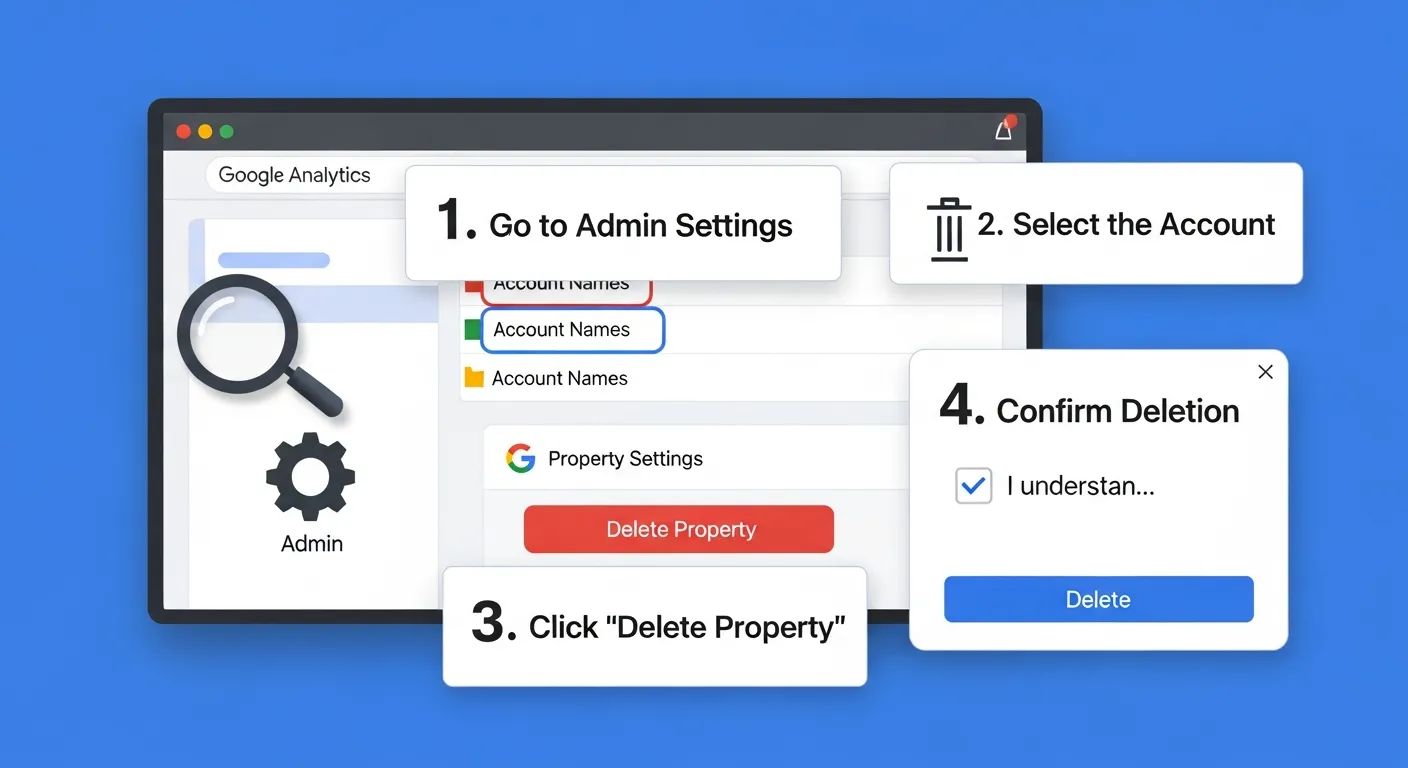
The process to delete Google Analytics accounts is straightforward if you have the right permissions. This action will remove the account and all associated properties, views (for UA), and data streams (for GA4).
How to Delete a Google Analytics Account
If you are sure you want to wipe the slate clean, follow these steps:
- Log In: Sign in to Google Analytics with your Administrator credentials.
- Navigate to Admin: Click the gear icon in the bottom left corner to access the Admin panel.
- Select the Account: In the “Account” column (the leftmost column), use the dropdown menu to select the specific account you wish to delete.
- Account Settings: Click on “Account Settings” in the Account column.
- Move to Trash: Look for the button that says “Move to Trash Can” at the top right of the settings pane.
- Confirm: You will see a confirmation screen explaining the consequences. Confirm the action to delete Google Analytics accounts.
What Happens Next?
When you choose to delete Google Analytics accounts, the account and all its data are moved to the Trash Can. They are not instantly wiped from Google’s servers. You have a 35-day safety net. During this period, you can restore the account. After 35 days, the deletion becomes permanent, and data recovery is impossible.
How to Delete a Google Analytics Property
Sometimes you don’t want to delete Google Analytics accounts entirely; you just need to remove a specific website or app that is no longer active.
Deleting a GA4 Property
Google Analytics 4 (GA4) is the current standard. Here is how to remove a property:
- Access Admin: Click the gear icon.
- Select Property: In the “Property” column (middle column), select the property you want to remove.
- Property Settings: Click “Property Settings.”
- Trash Can: Click the “Move to Trash Can” button in the top right corner.
- Confirm: Acknowledge the warning to proceed.
Deleting a Universal Analytics (UA) Property
Although UA stopped processing new hits in July 2023, many users still have old UA properties cluttering their accounts. To clean these up:
- Access Admin: Go to the Admin panel.
- Select Property: Choose the UA property (identified by the “UA-” prefix).
- Property Settings: Click “Property Settings.”
- Trash Can: Click “Move to Trash Can.”
Why You Should Clean Up Your Analytics Portfolio

Maintaining a lean analytics setup is about more than just aesthetics. Bloated accounts can lead to confusion, data reporting errors, and security risks.
Improved Data Governance
When you have dozens of unused properties, it becomes difficult to manage user access. Former employees or agencies might still have access to old properties, which creates a security vulnerability. By regularly auditing and deciding to delete Google Analytics accounts that are obsolete, you tighten your security perimeter.
Better Efficiency
Navigating through a dropdown menu of 50 properties to find the one active site is frustrating. Cleaning up your portfolio ensures that your team spends less time searching and more time analyzing.
Compliance and Privacy
With regulations like GDPR and CCPA, holding onto data you no longer use is a liability. If you have collected user data on a defunct project, you are still responsible for it. It is often safer to delete Google Analytics accounts associated with closed projects than to maintain compliance for dead data.
For more insights on managing your digital tools efficiently, check out mobile marketing apps canva google analytics.
Organizational Benefits of Deletion
|
Benefit Category |
Description |
Impact |
|---|---|---|
|
Security |
Reduces the number of access points for potential breaches. |
High |
|
Compliance |
Minimizes data retention liability under GDPR/CCPA. |
High |
|
Productivity |
Streamlines the dashboard for faster navigation. |
Medium |
|
Accuracy |
Prevents confusion between active and test/legacy properties. |
Medium |
- Audit Regularly: Schedule a quarterly review of all accounts.
- Remove Unused Access: Before deletion, remove users to ensure no one restores it without permission.
- Document Everything: Keep a log of what was deleted and why.
Important Considerations Before Deleting
Deciding to delete Google Analytics accounts is a major decision. Here are the critical factors you must weigh before pressing that button.
1. Data Loss is Permanent (Eventually)
While the 35-day window offers a reprieve, once that time elapses, the data is gone forever. There is no “super admin” at Google who can retrieve it for you. This includes all historical traffic data, conversion metrics, and user behavior flows.
2. Impact on Linked Products
Google Analytics is rarely used in isolation. It is often the hub of a marketing ecosystem. When you delete Google Analytics accounts, you break the link to:
- Google Ads: Your remarketing lists will stop populating, and conversion tracking imported from Analytics will fail.
- Google Search Console: You will lose the integration that allows you to see query data inside Analytics.
- Looker Studio (Data Studio): Any dashboards pulling data from the deleted property will break immediately.
- Google Optimize: Any experiments linked to the property will cease.
3. The “Trash Can” Limitation
The Trash Can is not a storage locker. It is a purgatory with a timer. If you manage multiple accounts, it is easy to forget which ones are in the Trash Can. If you miss the 35-day window, you cannot reverse the decision to delete Google Analytics accounts.
Alternatives to Deletion
If you are hesitant, consider these alternatives:
- Rename the Property: Change the name to “ARCHIVED – DO NOT USE” so team members know to ignore it.
- Remove User Access: Strip all users except yourself to secure the data without destroying it.
- Archive Data: Export the data securely and then proceed to delete Google Analytics accounts.
Mastering Your Analytics Setup for Marketing Success
A clean analytics account is the foundation of accurate marketing reporting. When your data is cluttered with test properties or defunct websites, it skews your understanding of overall performance.
The Role of Clean Data in Strategy
Marketing decisions are only as good as the data fueling them. If you have duplicate properties, double-counting conversions, or old properties dragging down your aggregate metrics, your ROI calculations will be flawed. Learning when to delete Google Analytics accounts is part of maintaining data integrity.
Integration with Other Tools
Your analytics setup should work seamlessly with your other marketing platforms. When you audit your accounts to decide what to delete, also audit your integrations. Ensure that the properties you keep are correctly linked to your CRM, email marketing platforms, and ad networks.
Best Practices for Account Structure
- One Account per Business Entity: Don’t mix personal blogs with corporate sites in the same account.
- One Property per Website/App: Use Data Streams in GA4 to handle cross-platform tracking rather than separate properties.
- Separate Production and Staging: Keep your live site data separate from your development site data.
You can learn more about optimizing your setup at Mastering Google Analytics for marketing success.
Comparison of Clean vs. Cluttered Accounts
|
Feature |
Clean Account Structure |
Cluttered Account Structure |
|---|---|---|
|
Data Retrieval Speed |
Fast; easy to locate specific streams. |
Slow; requires sifting through noise. |
|
Reporting Accuracy |
High; minimal risk of selecting the wrong source. |
Low; high risk of human error. |
|
User Management |
Simple; clear roles and permissions. |
Complex; difficult to audit access. |
|
Strategic Clarity |
Clear view of active performance. |
Obscured by historical/irrelevant data. |
- Consolidate: Merge properties where possible using GA4 cross-domain tracking.
- Label Clearly: Use consistent naming conventions.
- Regular Purges: Don’t be afraid to delete Google Analytics accounts that serve no purpose.
Troubleshooting Common Issues When You Delete Google Analytics Accounts
Even with a guide, you might encounter roadblocks. Here is how to solve the most common issues when trying to delete Google Analytics accounts.
I Can’t See the “Move to Trash Can” Option
This is almost always a permissions issue.
- Diagnosis: Check your user role in the Admin panel under “Account Access Management.”
- Solution: If you are not an Administrator, contact the account owner to upgrade your permissions or have them perform the deletion.
I Accidentally Deleted the Wrong Property
Panic sets in, but you have a safety net.
- Immediate Action: Do not wait. Navigate to the “Trash Can” in the Account column of the Admin panel.
- Restoration: Locate the property or account, select it, and click “Restore.” The data will reappear in your reports shortly, usually within an hour.
Linked Services Are Disrupted
You deleted a property, and now your Google Ads campaigns have stopped performing.
- Diagnosis: You likely deleted the source of your remarketing audiences or conversion actions.
- Solution: If within 35 days, restore the property. If it’s too late, you must set up a new property, reinstall the tracking code, and relink it to Google Ads. You will unfortunately, start from scratch with data accumulation.
Data Export Isn’t Working
You are trying to archive data before you delete Google Analytics accounts, but the export fails.
- Check Date Range: trying to export too much data at once (e.g., 5 years of daily data) can time out the export. Break it down into smaller chunks (yearly or quarterly).
- Check Sampling: Ensure you aren’t exporting sampled data if you need precision. Use a shorter date range or Standard reports to avoid sampling.
Plugins and Tools to Assist with Analytics Management

For those using platforms like WordPress, managing Google Analytics often happens through plugins. These tools can sometimes complicate the deletion process if not handled correctly.
The Role of Plugins
Plugins insert the tracking code onto your website automatically. If you delete Google Analytics accounts but leave the plugin active, your website will still try to send data to a non-existent property. This can cause console errors in visitors’ browsers and slightly degrade site performance.
Disconnecting Properly
When you delete Google Analytics accounts, you must also update your website.
- Deactivate the Plugin: If the plugin was only for that specific property.
- Update the ID: If you are switching to a new property, replace the old Measurement ID (G-XXXXXXXXXX) with the new one in the plugin settings.
Recommended Workflow for WordPress Users
- Step 1: Create your data backup.
- Step 2: Delete Google Analytics accounts or properties in the Google interface.
- Step 3: Go to your WordPress dashboard.
- Step 4: Navigate to your analytics plugin settings.
- Step 5: Remove the auth token or disconnect the account.
For a list of top tools to manage this effectively, visit the best affiliate marketing plugins for WordPress.
Common Plugin Issues Post-Deletion
|
Issue |
Cause |
Fix |
|---|---|---|
|
404 Errors in Console |
Tracking code still present for deleted property. |
Remove code snippet or disable plugin. |
|
Slow Site Speed |
The plugin is trying to connect to an invalid API. |
Disconnect the plugin from the Google API. |
|
Data Gaps |
New property created, but plugin not updated. |
Enter the new Measurement ID in the plugin. |
- Review Code: Always check your
header.phpfile if you manually inserted code. - Cache: Clear your website cache after removing tracking codes.
- Audit Tags: Check Google Tag Manager to ensure tags firing to the deleted property are paused or removed.
Frequently Asked Questions (FAQ)
Q1: Can I recover a Google Analytics account after 35 days?
No, once the 35-day restoration window has passed, the deletion is permanent. Google purges the data from its servers to comply with data privacy regulations. There are no backups available for recovery, so it is critical to be certain before you let a property sit in the Trash Can for that long.
Q2: Will deleting my Google Analytics account affect my website’s live status?
No, deleting your analytics account will not take your website offline or break its visual functionality. However, it will leave “orphan” tracking code on your site if you don’t remove it. This code will attempt to send data to a void, which can generate errors in the browser console, potentially slowing down page load times slightly.
Q3: How does deleting a property affect business growth strategies?
Deleting a property removes historical data, which is vital for trend analysis. Without past data, you cannot benchmark current performance against previous years. To mitigate this risk, ensure you have a robust strategy for data archiving. You can read more about strategy at the business analytics growth strategy.
Q4: Do I need to remove the tracking code before I delete the account?
Technically, you don’t have to, but it is best practice. If you delete Google Analytics accounts first, the code on your site becomes useless. It is cleaner to remove the code or the Google Tag Manager tag simultaneously to ensure your website code remains efficient and error-free.
Q5: Can I delete just one specific view in Universal Analytics?
Yes, in Universal Analytics, you can delete a specific View without deleting the entire Property or Account. Go to the “View Settings” in the right-hand column of the Admin panel and select “Move to Trash Can.” Note that GA4 does not use Views; it uses Data Streams, which can also be deleted individually.
Q6: What is the analytical experience required to manage deletions?
You don’t need to be a data scientist, but you do need Admin access and a clear understanding of the account hierarchy. Knowing the difference between a Data Stream, a Property, and an Account is crucial to avoid deleting more than you intended. For deeper insight, visit the power of analytical experience.
Q7: Will deleting my account stop Google from charging me?
The standard version of Google Analytics is free, so there are no charges to stop. However, if you are using Google Analytics 360 (the paid enterprise version), deleting the account does not automatically cancel your contract. You must contact your Google Sales Partner or Google support to terminate the billing agreement formally.
Q8: Can I merge two Google Analytics accounts instead of deleting one?
No, you cannot merge data from two different accounts or properties into one. The data is siloed. However, you can move a Property from one Account to another. This is a great alternative to deletion if you are trying to consolidate your organization’s setup. You can move the property and then delete Google Analytics accounts that are empty.
Q9: What is the “analytical chemistry” of a deletion?
Think of deletion as an irreversible reaction. Once the components (data) are broken down and the reaction time (35 days) has passed, you cannot reconstitute the original substance. It underscores the importance of precision in data management. Learn more at what is the analytical chemistry.
Q10: Why is the “Move to Trash Can” button grayed out for me?
This indicates insufficient permissions. You likely have “Editor” access, which allows you to configure goals and filters, but not “Administrator” access, which is required for account and property management. You must ask the current Administrator to elevate your permissions to perform the deletion.
Conclusion
Knowing how to delete Google Analytics accounts and properties is a fundamental skill for any digital marketer or website administrator. It is the final step in the lifecycle of a digital project and a key component of data hygiene.
While the process is technically simple—navigate to Admin, select Settings, and Move to Trash—the implications are significant. The permanent loss of data requires careful consideration, preparation, and execution. By following the steps outlined in this guide, ensuring you have the correct permissions, and adhering to the 35-day safety protocols, you can manage your analytics infrastructure securely.
Remember to audit your accounts regularly. Don’t let your workspace become a graveyard of abandoned projects. A clean, well-organized Google Analytics account leads to clearer insights, better security, and ultimately, smarter business decisions. Whether you are archiving old data or simply tidying up, you now have the knowledge to delete Google Analytics accounts the right way.