Google Analytics is a free tool that tracks website traffic, user behavior, and conversions. By installing its tracking code, you gain insights on visitors, traffic sources, and page performance, enabling data-driven decisions to optimize marketing, content, and overall website effectiveness.
What is Google Analytics and Why is it so Important?
What is Google Analytics
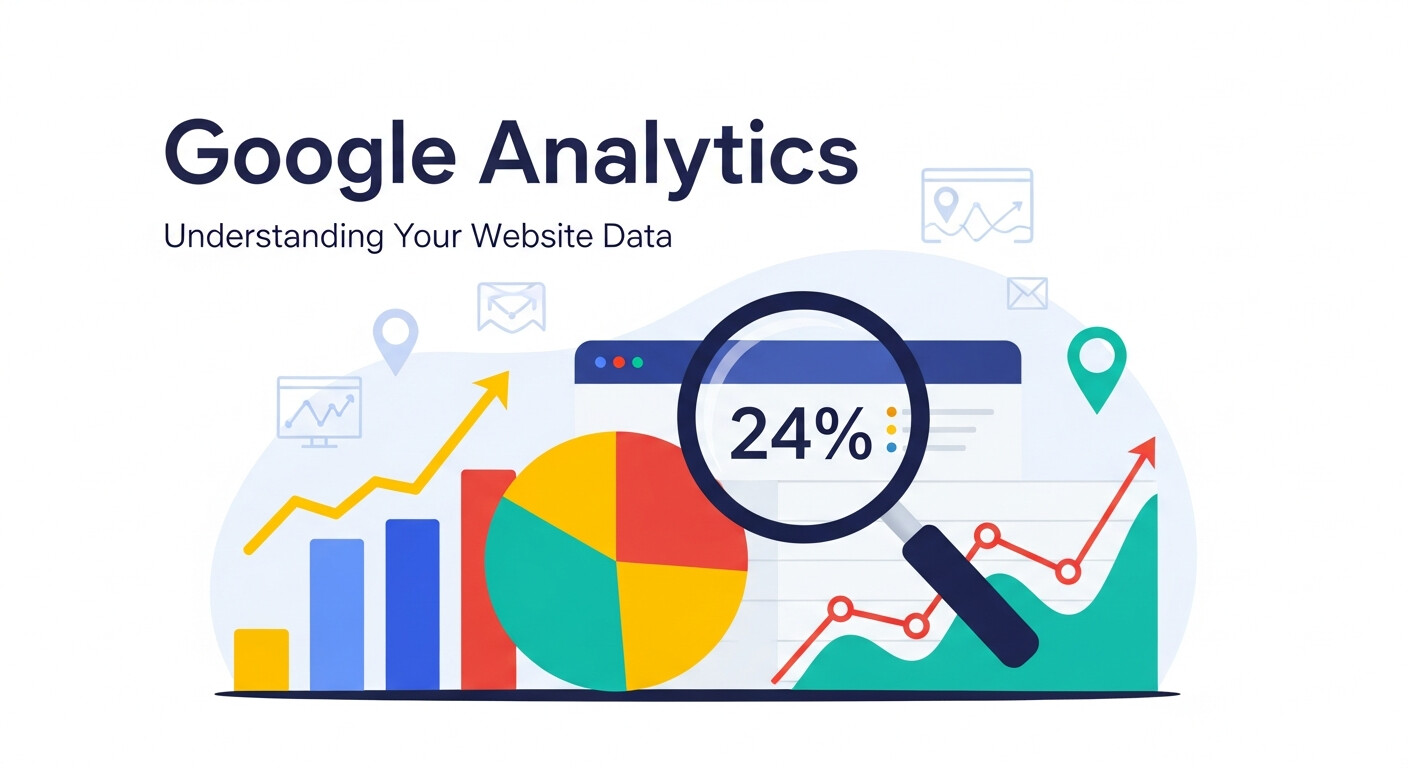
Google Analytics is a free web analytics tool which lets you measure your website performance, user activity and valuable insights. Once you have the Google Analytics code installed on your site, you could unlock the capabilities like audience demographics, goal tracking, and event analysis. Some of the main advantages are:
-
Understanding visitor behavior: See who enters your site, what they are doing and how long they stay.
-
Traffic sources tracking: Get to know that where visitors are coming from, e.g., search engines, direct links, social media etc..
-
Optimize conversions: Learn which pages convert leads faster and which pages need to work better to streamline your sales funnel.
Visualize Google Analytics as a Fitbit for your website, able to monitor your every move, explaining what that activity means, and helping you make informed decisions for your business. Read more about this topic: How Do I Use Google Analytics for Website Success?
How to Download Google Analytics Code – Step by Step Instructions
Step 1. Sign Up for a Google Analytics Account
If you don’t already have a Google Analytics account, you’ll need to follow these steps:
-
Visit Google Analytics.
-
Sign in with your Google account login, or create a Google account if you need to.
-
Click on “Start Measuring” to establish your Google Analytics account.
-
Your Account Name (i.e. your company or website name).
-
Set up sharing settings for your account.
Step 2. Set Up a Property
After creating your account:
-
Now you may click the next button to start setup property.
-
Enter your site name (ex. My Website Analytics).
-
Choose your time zone and currency.
-
Click “Next” and input your business information such as industry and company size.
Step 3. Access Your Tracking Code
Once your property is created, you will have the Google Analytics tracking code:
-
Access your Admin Panel by clicking the gear icon in the bottom left corner of the analytics dashboard.
-
Double click on “Data Streams” under Property.
-
Select the platform you`d like to use (e.g., Web for website tracking).
-
Press your site’s name in the data stream.
-
Copy the Tracking ID/Code that appears under the Global Site Tag (gtag.js) section.
You’re all set to start using your Google Analytics tracking code!
How to Add Google Analytics Code to Your Website
Now that you have the Google Analytics code, you will need to install it on your website. There are slightly different ways to do this depending on the platform, so here’s how to get started on the most popular ones.
For WordPress Websites
-
Login to your WordPress admin dashboard.
-
Add and activate a plugin such as MonsterInsights or Insert Headers and Footers.
-
Insert the Google Analytics code into the injected area in the plugin settings.
-
Or if you’re code-savvy, you can copy the tracking code and paste it directly into your themes header file’s tag.
For Shopify Stores
-
Sign in to your Shopify admin.
-
Online Store > Preferences.
-
Scroll down to the Google Analytics option and enter your tracking code on the text box.
For Custom HTML Websites
-
Open your site’s HTML documents in a text editor or web host program.
-
Insert the tracking code below into your section of all of the pages on the site you wish to track it.
-
Save and upload new files to your server.
Using Google Tag Manager
If you are using Google Tag Manager:
-
Sign in to your Tag Manager account.
-
Click Add a new tag and select Google Analytics GA4 Configuration Tag.
-
Add your tracking ID to the tag configuration.
-
Publish your tag to complete the installation.
Setting Up Goals and Conversions

Goals and conversions in Google Analytics help you track the key actions you want visitors to take on your website, such as completing a purchase, signing up for a newsletter, or submitting a contact form. By defining goals, you can measure how effectively your site meets business objectives and identify areas for improvement. GA4 allows you to set up event-based conversions, giving you flexibility to track micro-conversions like video plays or downloads. Monitoring conversion rates over time provides insights into user behavior, website performance, and the success of marketing campaigns, allowing you to optimize your site for better engagement and revenue. Properly configured goals turn raw data into actionable insights.
Understanding Audience Reports
Audience reports in Google Analytics provide detailed insights into the demographics, interests, and behaviors of your website visitors. You can learn about user age, gender, location, device type, and even interests, allowing you to tailor content and marketing campaigns more effectively. GA4 adds more granular analysis with engagement metrics, session frequency, and user retention tracking, giving a better understanding of your active audience. By analyzing these reports, businesses can segment visitors into meaningful groups, target high-value users, and improve user experience. Audience data helps marketers make data-driven decisions for personalization, advertising targeting, and content strategy, ensuring that your website caters to the right audience at the right time.
Traffic Source Analysis
Traffic source analysis identifies where your website visitors are coming from, whether through organic search, paid ads, social media, email campaigns, or direct visits. Understanding which channels drive the most traffic and conversions allows marketers to allocate resources more efficiently and optimize marketing campaigns. GA4 provides advanced tracking of referral traffic, campaign performance, and cross-channel attribution, giving a complete picture of the customer journey. By comparing the performance of different channels, you can determine which campaigns are delivering ROI and which need improvement. This insight empowers businesses to refine strategies, focus on high-performing channels, and create a cohesive, data-driven marketing approach that maximizes reach and engagement.
Event Tracking and Analysis

Event tracking allows you to monitor specific user interactions on your website beyond standard pageviews, such as button clicks, video plays, downloads, or form submissions. In GA4, event tracking is central to the platform, enabling you to define custom events and capture granular user behaviors. By analyzing event data, you gain insights into user engagement, understand how visitors interact with your content, and identify friction points in the user journey. Event analysis helps optimize website design, improve user experience, and increase conversions. Businesses can leverage this data to test different layouts, CTAs, or content formats, making decisions based on user behavior rather than assumptions, and ultimately achieving better website performance.
Setting Up Custom Dashboards
Custom dashboards in Google Analytics allow you to create a personalized view of the metrics and reports that matter most to your business. Instead of navigating multiple menus, you can compile charts, graphs, and tables into one easy-to-read dashboard. GA4 offers flexibility to visualize user behavior, conversions, traffic sources, and real-time data tailored to your goals. Custom dashboards help save time, monitor performance at a glance, and identify trends or anomalies quickly. They are especially useful for teams, as dashboards can be shared with stakeholders to provide insights into campaign performance, website health, and user engagement. Well-structured dashboards streamline decision-making and enhance data-driven strategies.
Understanding User Behavior Flow
User behavior flow reports visualize the path visitors take through your website, showing how they navigate from page to page and where they drop off. This insight is crucial for identifying popular paths, bottlenecks, and pages that need improvement. GA4’s enhanced analysis allows tracking cross-device journeys and interactions with content, providing a more complete view of user engagement. By studying behavior flows, marketers can optimize navigation, restructure content, and create smoother conversion paths. This leads to higher engagement and reduced bounce rates. Additionally, behavior flow analysis helps identify high-performing content and underperforming areas, enabling data-driven decisions to improve the overall user experience and drive conversions more effectively.
Using Segmentation for Deeper Insights
Segmentation in Google Analytics allows you to group users based on specific criteria such as demographics, traffic source, behavior, or conversion activity. By analyzing segments, you gain a clearer understanding of how different types of visitors interact with your site. GA4’s advanced segmentation enables comparisons of user cohorts, lifetime value, and engagement patterns over time. Segmentation helps marketers identify high-value users, uncover trends, and tailor campaigns to specific audience groups. It also allows you to test hypotheses, optimize content, and improve conversion rates. By leveraging segmentation, businesses can make precise, data-driven decisions, personalize marketing strategies, and enhance the effectiveness of their website and advertising efforts.
Advanced Reporting with GA4
Google Analytics 4 offers advanced reporting features that provide deeper insights into user behavior, conversions, and marketing performance. Custom reports, exploration tools, and predictive metrics enable detailed analysis of traffic patterns, customer journeys, and engagement trends. GA4’s event-based tracking allows for flexible reporting on micro- and macro-conversions across devices and platforms. Advanced reporting helps businesses measure ROI, optimize campaigns, and understand user behavior at a granular level. By combining standard and custom reports, marketers can monitor KPIs, test strategies, and make informed decisions that enhance website performance. These insights help improve user experience, maximize conversions, and ensure that marketing investments deliver measurable results.
Troubleshooting Common Issues
Even with an easy-to-use guide, some folks may stumble when trying to paste that Google Analytics code in. Here are a couple of troubleshooting suggestions for common problems.
Problem 1. Not Showing in Google Analytics – 10 Common Reasons For Troubleshooting Data in GA
Solution: Confirm you’ve all installed the code correctly with tools like Google’s Tag Assistant. And keep in mind, it can take up to 24 hours for your analytics to begin coming through.
Problem 2. Incorrect Placement of Code
Solution: Make sure to put your script inside the head tag instead of any other place, It doesn’t work when in wrong location!
Problem 3. Duplicate Tags
Solution: Ensure that you are not running more than one version of the tracking code on a single page, since it would mess up the statistics.
Discover the Power of Google Analytics
Now that you have Google Analytics running on your site, you’ll be ready to get some data about who is using your site otherwise not that useful data in most cases unless you actually analyze it. This is not to mention the huge impact this data has on things like knowing your audience and tactics for marketing.
Then, step two: make a practice of regularly looking at your analytics data for actionable findings. No idea how to make the most of that? Visit Google Analytics Academy for training and tips to help you use Analytics with confidence.
By installing Google Analytics on your website, you’re one of millions of website owners who are able to make smarter, data-informed decisions every day.Once you have the Google Analytics code, you might want to add it to platforms like a Canva website with ease.
Frequently Asked Questions (FAQ)
1. What is Google Analytics used for?
Google Analytics is used to track and analyze website traffic and user behavior. It helps you understand where visitors come from, how they interact with your pages, and which content or actions drive conversions.
2. Is Google Analytics really free?
Yes, Google Analytics is completely free for most users. Google also offers a paid version called Google Analytics 360, which is designed for large enterprises with advanced reporting and data needs.
3. What is the difference between GA4 and Universal Analytics?
GA4 (Google Analytics 4) is the latest version of Google Analytics. It focuses on event-based tracking, cross-device measurement, and improved privacy controls. Universal Analytics is no longer supported for new data tracking.
4. How long does it take for Google Analytics to start showing data?
After installing the tracking code correctly, data usually appears within a few minutes to a few hours. In some cases, it may take up to 24 hours for reports to fully populate.
5. Where should I place the Google Analytics tracking code?
The Google Analytics tracking code should be placed inside the <head> section of every page you want to track. Using Google Tag Manager or a CMS plugin can simplify this process.
6. Can I use Google Analytics on multiple websites?
Yes. You can create multiple properties within a single Google Analytics account, allowing you to track multiple websites or apps separately under one login.
7. How do I know if my Google Analytics code is working?
You can verify your setup by checking the Realtime report in Google Analytics or using tools like Google Tag Assistant or Google Tag Manager preview mode.
8. Does Google Analytics track all visitors automatically?
Google Analytics tracks most visitors, but some users may block tracking using ad blockers, privacy settings, or browser restrictions. This can cause minor gaps in data.
9. Is Google Analytics GDPR compliant?
Google Analytics provides tools to support GDPR compliance, such as IP anonymization and consent settings. However, website owners are responsible for obtaining user consent and configuring Analytics properly.
10. What should I look at first in Google Analytics?
Beginners should start with audience overview, traffic sources, top pages, and engagement metrics. These reports provide quick insights into who visits your site and how they interact with it.