
This comprehensive guide simplifies logging into a new Adobe Analytics account, troubleshooting common issues, and managing multiple accounts efficiently. It includes step-by-step instructions, best practices, and FAQs to help users maximize Adobe Analytics’ powerful capabilities.
Adobe Analytics stands as a cornerstone for digital marketers and web analysts aiming to dissect website data, uncover valuable opportunities, and drive strategic improvements. From mapping intricate customer journeys to boosting conversion rates and evaluating campaign performance, Adobe Analytics provides the clarity needed to understand your business deeply. However, the administrative side, especially managing account access, can sometimes feel complex, particularly when you are invited to a new account.
This comprehensive guide is designed to guide you through this process. By the end of this post, you will be equipped to seamlessly log into your new Adobe Analytics account, troubleshoot common login hurdles, and apply best practices for managing multiple accounts with unparalleled efficiency. We will explore every facet of the process, ensuring you can harness the power of Adobe Analytics without delay.
Understanding Adobe Analytics and the Importance of Account Management
Adobe Analytics is a powerful component of the Adobe Experience Cloud, offering robust insights through a data-driven approach that spans websites, mobile applications, and other digital media. It allows organizations to collect, configure, and analyze data from any digital touchpoint to build a holistic view of their customers. This detailed understanding is what empowers businesses to optimize their digital properties and marketing efforts effectively. Effective account management within Adobe Analytics is not just an administrative task; it is a critical function for both individual users and large, collaborative teams.
Properly managing who has access to which data sets is fundamental to maintaining data security and integrity. For large organizations, this means controlling which analysts can view and work with specific data, thereby protecting sensitive information and ensuring compliance with privacy regulations. When analysts have clearly defined access, they can focus on the specific report suites relevant to their role, preventing confusion and improving workflow efficiency. Whether you are stepping into a new role, joining a new team, or gaining temporary access for a project, your journey with Adobe Analytics begins with a single, crucial step: learning how to log in. This is especially true when a new account has just been added to your profile.
The Role of Adobe Analytics in Modern Data Strategy
In today’s data-centric landscape, businesses are inundated with information from countless sources. The challenge lies not in collecting data, but in transforming it into actionable intelligence. This is where Adobe Analytics excels. It moves beyond basic web traffic metrics to provide sophisticated segmentation, real-time analytics, and predictive insights. By using Adobe Analytics, companies can understand user behavior at a granular level, identify high-value audience segments, and personalize customer experiences to drive engagement and loyalty.
A well-managed Adobe Analytics implementation ensures that data is clean, consistent, and reliable. This forms the foundation of any successful data strategy. When account management is handled diligently, it guarantees that the right people have the right level of access to this data, fostering a culture of data-driven decision-making across the organization. This controlled environment also simplifies collaboration, as team members can be confident they are all working from the same validated data sources. The precision offered by Adobe Analytics helps businesses answer complex questions, such as which marketing channels deliver the highest return on investment or where customers are dropping off in the conversion funnel.
Why Structured Account Access is Crucial for Security and Efficiency
Structured account access in Adobe Analytics is paramount for several reasons. Firstly, it enhances security. By limiting access to specific report suites and tools based on user roles, organizations can prevent unauthorized data exposure or accidental misconfiguration. For instance, an analyst might need view access to reports but not edit access to administrative settings. This principle of least privilege is a cornerstone of good data governance.
Secondly, it boosts efficiency. When users log in and see only the report suites and dashboards relevant to their projects, they can get to work faster. This declutters their workspace and reduces the cognitive load of navigating through irrelevant data. For analysts working across multiple client accounts or business units, being able to quickly switch between clearly defined organizational contexts is a massive productivity booster. Without proper account management, an analyst’s interface could become a bewildering list of hundreds of report suites, making it nearly impossible to find the right one. This is why a firm grasp of logging into a new Adobe Analytics account is so vital.
Finally, structured access facilitates compliance. With regulations like GDPR and CCPA, controlling who can access personal data is a legal requirement. Adobe Analytics provides the tools to enforce these policies, but it is up to the organization to implement them correctly through diligent account and user management. Ensuring that access is granted, reviewed, and revoked in a timely manner is a key part of any compliance framework.
Advanced Analytics and Strategic Implementation
Integrating Adobe Analytics into your business operations goes beyond simple data collection; it involves a strategic implementation that aligns with your overarching goals. This means setting up your report suites, variables, and events in a way that captures the most meaningful interactions. For a deeper understanding of how various platforms contribute to a complete data picture, you can explore insights on advanced analytics tools and your guide to success. A mature analytics strategy leverages these tools not just for reporting on past performance but for forecasting future trends and prescribing actions.
Key Considerations for New Adobe Analytics Users
For those new to the platform, the initial experience with Adobe Analytics can be overwhelming due to its sheer depth and capability. Here are some key considerations to keep in mind as you begin your journey:
- Understand Your Business Objectives: Before diving into the data, clarify what you are trying to achieve. Are you focused on increasing online sales, improving user engagement, or generating more leads? Your objectives will determine which metrics and reports are most important to you. A clear goal makes Adobe Analytics a more targeted and effective tool.
- Familiarize Yourself with the Terminology: Adobe Analytics has its own lexicon. Understanding terms like
eVars,props,events,segments, andreport suitesis essential for navigating the platform. Take the time to go through Adobe’s documentation or internal training materials to build your foundational knowledge. - Start with Workspace: Analysis Workspace is the primary interface for analysis in Adobe Analytics. It is a flexible, drag-and-drop environment where you can build custom reports and visualizations. Instead of getting lost in pre-canned reports, focus on mastering Workspace to answer your specific business questions.
- Learn About Segmentation: The true power of Adobe Analytics lies in its segmentation capabilities. Segmentation allows you to isolate and compare specific groups of visitors based on their behaviors, demographics, or traffic sources. Learning how to build and apply segments is a game-changer for uncovering deep insights.
- Don’t Be Afraid to Experiment: The platform is a sandbox for curiosity. Create your own custom dashboards, experiment with different visualizations, and drill down into the data. The more you explore, the more comfortable and proficient you will become.
Comparing Adobe Analytics with Other Platforms

While Adobe Analytics is a leader in the enterprise analytics space, it is helpful to understand how it compares to other tools, particularly Google Analytics. Both are powerful platforms, but they serve different market segments and have different strengths.
|
Feature/Aspect |
Adobe Analytics |
Google Analytics (GA4) |
|---|---|---|
|
Primary Audience |
Enterprise-level organizations with complex data needs and dedicated analyst teams. |
Small to large businesses, with a lower barrier to entry for beginners. |
|
Data Model |
Highly customizable with |
An event-based model where every interaction is captured as an event with parameters. |
|
Customization |
Offers extreme flexibility in data collection and processing rules. Requires significant setup. |
More streamlined setup, but with less granular control over server-side processing rules. |
|
Sampling |
Generally provides unsampled data in most reports, especially in Analysis Workspace. |
Applies data sampling more aggressively in complex or ad-hoc reports, particularly in the free version. |
|
Integration |
Deeply integrates with the Adobe Experience Cloud (e.g., Target, Campaign, Audience Manager). |
Excellent integration with Google’s ecosystem (e.g., Google Ads, BigQuery, Search Console). |
|
Cost |
Premium pricing model based on server calls, making it a significant investment. |
Offers a robust free version, with a premium option (GA360) for enterprises. |
|
Learning Curve |
Steeper learning curve due to its complexity and extensive feature set. |
Generally considered more user-friendly and easier for beginners to pick up. |
Ultimately, the choice between Adobe Analytics and other platforms depends on your organization’s specific needs, budget, and technical resources. For those already using Google’s platform, there are many resources available for mastering Google Analytics for marketing success, which can provide a solid foundation in web analytics principles that are transferable to Adobe Analytics.
Step-by-Step Guide to Logging into a New Adobe Analytics Account
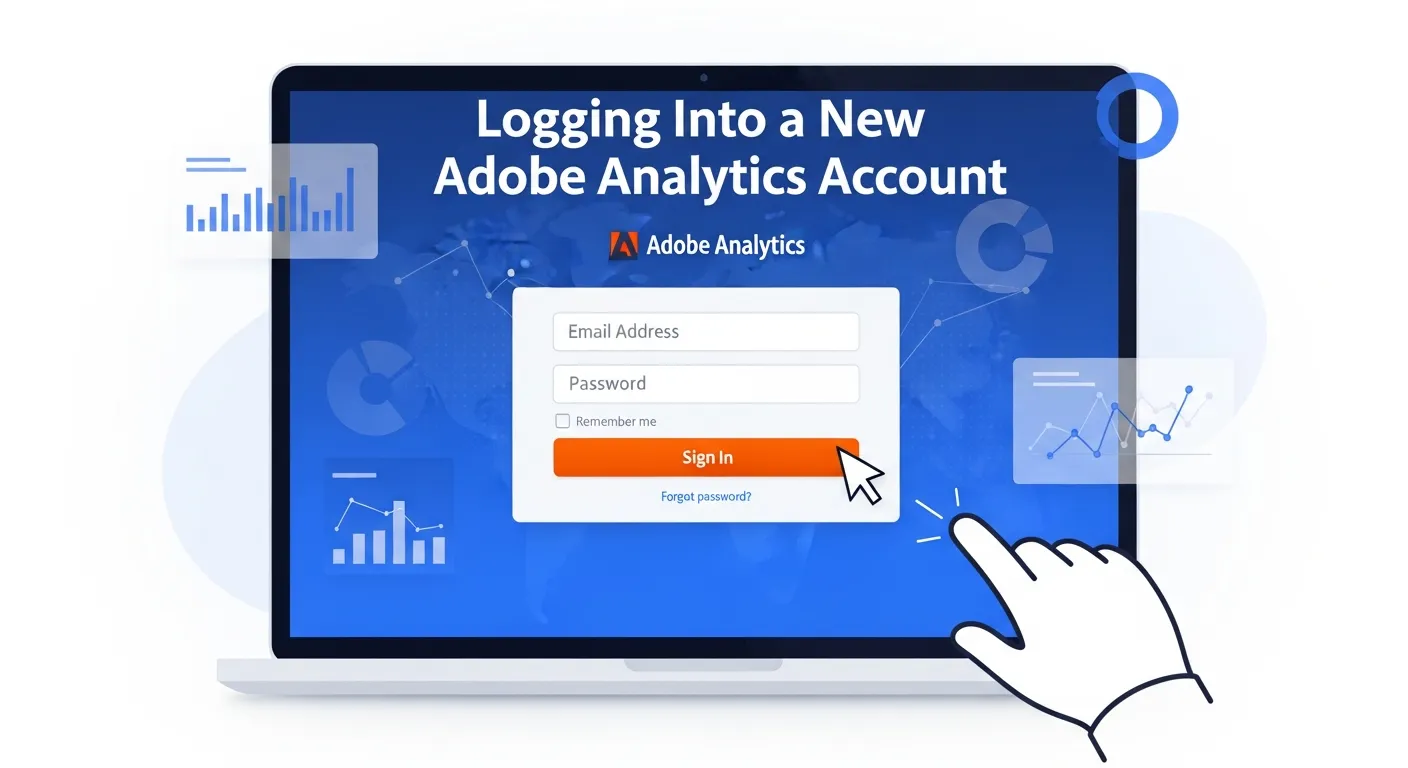
Gaining access to a new Adobe Analytics account does not have to be a complicated affair. By following a structured process, you can ensure a smooth and successful login, allowing you to access the data you need without unnecessary friction. This detailed guide breaks down each step, providing clarity and context to help you navigate the Adobe Experience Cloud environment with confidence. Remember that the entire process is centralized through the Adobe Experience Cloud, which acts as the gateway to all of Adobe’s marketing and analytics solutions, including Adobe Analytics.
Step 1: Verify That You Have Access
Before you even attempt to log in, the most crucial first step is to confirm that an administrator has properly set up your access. You cannot log into an account that your profile has not been linked to. Access to Adobe Analytics is managed through the Adobe Admin Console, which is the central hub for user and product management across the Adobe ecosystem.
How Access is Granted
An administrator, who could be your team lead, an IT manager, or a dedicated Adobe solutions admin, must add your email address to their organization’s Adobe Experience Cloud account. They will then assign you to a product profile that includes Adobe Analytics and grant you specific permissions and roles. These roles dictate what you can see and do within the platform—for example, whether you have access to certain report suites or administrative tools.
Look for the Invitation Email
Once the administrator completes this process, you should receive an automated email directly from Adobe.
- Email Subject: The subject line is typically clear, such as “You’ve Been Added to Adobe Analytics” or “Access to Adobe Experience Cloud.”
- Email Content: This email serves as your official confirmation. It will usually contain the name of the organization that has granted you access and may outline the products you can now use. Crucially, it confirms that your user account, tied to your email address, is now active within that organization’s environment.
- Action Required: If you are a new user to the Adobe ecosystem, the email might contain a link to create your Adobe account and set a password. If you already have an Adobe ID with that email address, the new organization access will simply be linked to your existing account.
If you have not received this email but expect access, your first point of contact should be the account administrator. It is possible there was a typo in your email address or the setup process was not completed. Proactively communicating with your admin can save a lot of time and prevent login-related frustration.
Step 2: Navigate to the Adobe Experience Cloud Login Page
All access to Adobe Analytics is routed through a unified login portal. You do not log into Adobe Analytics directly. Instead, you log into the Adobe Experience Cloud, which then gives you access to all the Adobe solutions you are permissioned for.
The official login page is located at: experience.adobe.com
It is a best practice to bookmark this URL for quick and easy access in the future. Saving it in a shared team document or knowledge base can also help onboard new team members. Avoid using old or saved links that might point to legacy login pages (like sc.omniture.com), as these are being phased out and may not work correctly, especially for accounts using the latest identity system.
Step 3: Log in to Your Adobe Experience Cloud Account
Once you are on the login page, you will be prompted to enter your credentials. This is a critical step where attention to detail matters, especially if you manage multiple Adobe identities.
- Enter Your Email Address: Use the exact email address to which the invitation was sent. This is your Adobe ID.
- Password Entry: Enter your corresponding password. If you have forgotten your password, use the “Reset your password” link to initiate the recovery process.
Handling Single Sign-On (SSO)
Many large organizations configure Single Sign-On (SSO) with Adobe Experience Cloud for enhanced security and convenience. If your company uses SSO, the login process will be slightly different:
- When you enter your email address on the Adobe login page and click “Continue,” Adobe’s system will recognize that your email domain is associated with an SSO configuration.
- You will be automatically redirected to your company’s own login portal (e.g., an Okta, Azure AD, or ADFS page).
- Here, you will enter your standard corporate credentials—the same username and password you use to log into your work computer or email.
- Upon successful authentication, you will be redirected back to the Adobe Experience Cloud, now fully logged in.
If you encounter issues on your company’s SSO page, you will need to contact your internal IT department for assistance, as Adobe support cannot troubleshoot your organization’s identity provider.
Public or Shared Devices
If you are logging in from a public computer or a shared device, always ensure you uncheck any “Stay signed in” or “Remember me” boxes. This is a basic but essential security measure to protect your account and your organization’s data.
Step 4: Select the Correct Organization
This step is particularly relevant for consultants, agency partners, or employees who work across multiple business units. If your Adobe ID is associated with more than one organization, you will be presented with an organization selector screen immediately after logging in.
This screen will display a list of all the Adobe Experience Cloud organizations you have access to. It is crucial to select the correct one associated with the new account you intend to work in. The organization name should match what was mentioned in your invitation email or communicated by your administrator. Selecting the wrong organization will lead you to a different data environment, and you will not see the report suites for your new account.
If you are not prompted to select an organization, it means your Adobe ID is currently linked to only one, and you will be taken directly into that organization’s Experience Cloud homepage.
Step 5: Navigate to Adobe Analytics and Confirm Access
Once you have successfully logged in and selected the correct organization, you will land on the Adobe Experience Cloud homepage. This dashboard provides links to all the solutions you have access to within that organization.
- Locate Adobe Analytics: Find the card or link for “Adobe Analytics” and click on it. This will open the Adobe Analytics interface, likely taking you to an Analysis Workspace project or the landing page.
- Verify Report Suite Access: The final confirmation is to ensure you can see the specific report suites tied to your new account. A report suite is a container of data, essentially the equivalent of a “property” in Google Analytics.
-
- Navigate to Admin > All admin tools > Report Suites.
- On the Report Suite Manager page, you will see a list of all the report suites you have permission to view.
- Use the search bar to look for the name or ID of the report suite(s) that your administrator confirmed you would have access to.
If you can find and select the expected report suite, you have successfully logged in and confirmed your access. You are now ready to begin your analysis. This process solidifies your entry into the world of Adobe analysis within the Adobe ecosystem.
Troubleshooting and Best Practices

Even with a perfect, step-by-step guide, you may occasionally encounter login issues. Technology can be fickle, and a simple misconfiguration or browser issue can throw a wrench in the works. Furthermore, for analysts and marketers who frequently work across multiple Adobe Analytics accounts, adopting a set of best practices is not just a matter of convenience—it is essential for maintaining efficiency, security, and sanity. This section covers common problems and their solutions, alongside professional tips for managing multiple accounts effectively.
Troubleshooting Common Login Issues
Login problems are frustrating, but most can be resolved with some simple troubleshooting. Here are some of the most common issues you might face when trying to access your new Adobe Analytics account and how to address them.
Issue 1: “User Not Recognized” or “Email Address Not Found”
This is one of the most frequent errors and almost always points to a discrepancy with the email address being used.
- Cause: You are trying to log in with an email address that has not been added to the Adobe Admin Console for the target organization. This could be due to a typo during login, or you might be using a personal Adobe ID instead of your corporate one (or vice versa).
- Solution:
-
- Double-Check Your Email: Carefully verify that the email address you are entering is the exact one where you received the access invitation. Check for any typos.
- Confirm with your Administrator: If you are certain the email is correct, contact your account administrator. Ask them to confirm the spelling of the email address in the Admin Console. It is common for admins to make a small mistake during user setup.
- Check for Multiple Adobe IDs: Some users inadvertently create multiple Adobe accounts with similar email addresses (e.g.,
[email protected]vs.[email protected]). Ensure you are using the correct identity.
Issue 2: Multi-Factor Authentication (MFA) Failure
Many organizations enforce MFA (also known as two-step verification) for an added layer of security. MFA failures can lock you out of your account.
- Cause: You are not receiving the authentication code on your mobile device, or the code you enter is not accepted. This can happen if you have a new phone, have changed your number, or have issues with your authenticator app.
- Solution:
-
- Check Your Device: Ensure your phone has a network connection to receive SMS messages or that your authenticator app’s time is synced correctly.
- Use Backup Codes: When you first set up MFA, Adobe prompts you to save backup codes. If you have these, you can use one to log in.
- Reset MFA Settings: You may be able to reset your MFA options by logging into your main Adobe account page (
account.adobe.com) and navigating to the Security settings. - Contact Your Admin/IT: If you are completely locked out, your organization’s Adobe administrator or internal IT helpdesk may need to reset your MFA configuration from the Admin Console.
Issue 3: Logged In, But Missing Permissions or Report Suites
You can successfully log in, but you cannot see the report suites you need, or certain tools and reports are grayed out.
- Cause: This is a classic permissions issue. Your account has been created, but it has not been assigned to the correct product profile or given the necessary user role (e.g., Viewer, User, Admin) for the required report suites.
- Solution:
-
- Communicate Specific Needs: Contact your administrator and be specific. Tell them exactly which report suite(s) you cannot see and what tasks you are trying to perform (e.g., “I need to create segments in the ‘Production Website’ report suite, but the Segment Builder is unavailable”).
- Request Role Verification: Ask the admin to verify that you are in the correct product profile and that this profile has the appropriate permissions for the target report suites. Sometimes, a user is added to the organization but the admin misses the step of assigning them to a specific product profile.
Issue 4: Browser Compatibility Problems or Glitches
The page is not loading correctly, it is blank, buttons are unresponsive, or the interface is freezing.
- Cause: These issues are often related to the web browser. Adobe Analytics is a complex web application and performs best on modern, updated browsers. An outdated browser, conflicting extensions, or a corrupted cache can cause rendering problems.
- Solution:
-
- Update Your Browser: Ensure you are using the latest version of a supported browser like Google Chrome, Mozilla Firefox, or Microsoft Edge.
- Clear Cache and Cookies: This is a classic fix that resolves a surprising number of web app issues. Clear your browser’s cache and cookies, then close and reopen it.
- Try an Incognito/Private Window: Logging in via an incognito or private window temporarily disables most extensions. If this works, an extension is likely causing the conflict. Disable your extensions one by one to identify the culprit.
- Check for Network Issues: A weak or unstable internet connection can also cause loading failures. Ensure your connection is active and stable.
Best Practices for Managing Multiple Adobe Analytics Accounts
For professionals juggling access to different clients, projects, or business units, efficient account management is key to productivity.
- Utilize a Password Manager: Using a secure password manager (like 1Password, LastPass, or Bitwarden) is non-negotiable. It allows you to securely store credentials for different Adobe IDs if you have them. You can label each entry clearly (e.g., “Adobe ID – Client A,” “Adobe ID – Personal”) to avoid confusion.
- Leverage Browser Profiles: Most modern browsers allow you to create separate user profiles. You can create a dedicated profile for each client or major project. Each profile has its own set of bookmarks, history, and saved logins. This is an excellent way to keep environments completely separate and avoid organization-switching issues within Adobe Experience Cloud.
- Document Account Specifics: Maintain a simple, secure document or spreadsheet that tracks key details for each account. This internal reference can be a lifesaver.
|
Organization Name |
Primary Report Suite(s) |
Your Role/Permissions |
Key Contacts (Admin) |
Project/Purpose |
|---|---|---|---|---|
|
Company A Corp |
|
User |
Q1 Campaign Analysis |
|
|
Client B Inc. |
|
Viewer |
Monthly Reporting |
|
|
Internal Dev Team |
|
Admin |
New Feature Testing |
- Proactively Manage Permissions: Your roles and responsibilities change over time. When you start a new project, request the necessary access in advance. When a project ends, be proactive about informing the administrator that your access is no longer needed. This practice enhances security and keeps your own account list clean and manageable.
- Use Workspace for Custom Views: Take full advantage of Analysis Workspace. You can create different projects tailored to the specific needs of each account. Give your projects clear, descriptive names (e.g., “Client B – Weekly Marketing KPI Dashboard”) and bookmark them for quick access after logging in. This saves you from having to rebuild analyses every time you switch contexts.
By adopting these troubleshooting and management strategies, you can navigate the complexities of Adobe Analytics access with ease, ensuring you spend less time dealing with logins and more time uncovering valuable insights.
Frequently Asked Questions (FAQ)
1. How long does it take for new account access to become active in Adobe Analytics?
Typically, access is granted almost instantaneously after an administrator adds you to the Adobe Admin Console. You should receive an invitation email within minutes and be able to log in right away.
2. Can I use the same email address for multiple Adobe Analytics organizations?
Yes, a single Adobe ID (your email address) can be granted access to multiple organizations. When you log in, you will be prompted to choose which organization’s Experience Cloud you want to enter.
3. What is the difference between an “Admin” and a “User” role in Adobe Analytics?
A “User” role typically allows you to view reports, create projects in Analysis Workspace, and build segments. An “Admin” has elevated privileges, including the ability to manage report suite settings, create users, and configure processing rules.
4. I have access to the wrong report suites. How do I fix this?
This is a permissions issue that only an administrator can resolve. You need to contact your organization’s Adobe admin and specify which report suites you need access to and which ones should be removed.
5. How can I switch between different organizations without logging out?
Once logged in, click the 9-dot grid icon for Adobe Experience Cloud solutions, then click your profile icon in the top-right corner. You should see an option to “Switch Organization” if your ID is linked to more than one.
6. Is there a way to automate reporting from Adobe Analytics?
Yes, Adobe Analytics offers several ways to automate reporting, including scheduling and delivering Workspace projects via email. For more advanced needs, you might explore whether Adobe Analytics accepts APIs for pulling data into other systems.
7. What should I do if my temporary project access expires?
If your access was for a limited time, it will be automatically revoked. If you still need access, you must contact the administrator and request an extension, explaining why it is still required.
8. Can I delete a report suite or an account myself?
No, end-users cannot delete report suites or accounts. This action is reserved for system administrators with high-level permissions. The process for removal is different from other platforms; for context, see how to delete an account in Google Analytics.
9. Why am I not seeing the “Admin” tab in Adobe Analytics?
If the “Admin” tab is not visible, it means your user account has not been granted administrative privileges. Your permissions are likely limited to reporting and analysis, which is common for most user-level roles.
10. I followed all the steps, but still can’t log in. What’s next?
If you have verified your email, checked with your admin, and tried basic troubleshooting, it may be a more complex issue. Your admin can submit a support ticket to Adobe on your behalf, as you’ll have all the context on how the new account was added in Adobe Analytics.