If you want to utilize actionable data-based insights for your digital advertising and marketing you must try what Competitor Analytics has to offer.While there are a large number of great options you can consider, one that stands out is Adobe Analytics.
Famed for its flexible data collection and reporting functionalities, the question around whether Adobe Analytics supports APIs often comes to the fore for marketers, analysts, and data scientists. The short answer is, yes. Adobe Analytics provides grouping of API’s which helps users to extract, manipulate and combined their data very easily.
Thus this blog will take an insight of what Adobe Analytics APIs are, How to execute them in a step-wise manner and how the APIs can be custom utilized to their full potential. Besides, we’ll go through a couple of common troubleshooting situations and show real world use cases that allows you to see the APIs in action.
Whether you are a newcomer to APIs or an experienced veteran, this guide provides the knowledge to get the most out of Adobe Analytics.
What is Adobe Analytics, and How Do APIs Fit Into It?
What is Adobe Analytics? Adobe Analytics is a unified analytics platform for enterprises to analyze the customer experience at scale, across all touch points. It allows companies to apply predictive analytics and advanced segmentation to their real-time data.
Applications Programming Interfaces (APIs): These are the connectivity-building blocks that allow applications and systems to communicate and share data. Adobe Analytics APIs allow enterprises to programmatically pull data, create reports on the fly, and share Adobe’s analysis with external systems and other platforms.
With such APIs, you can customize dashboards, create custom automation workflows, or enrich your datasets with external info so you work smarter, not harder.
Understanding Adobe Analytics API Capabilities
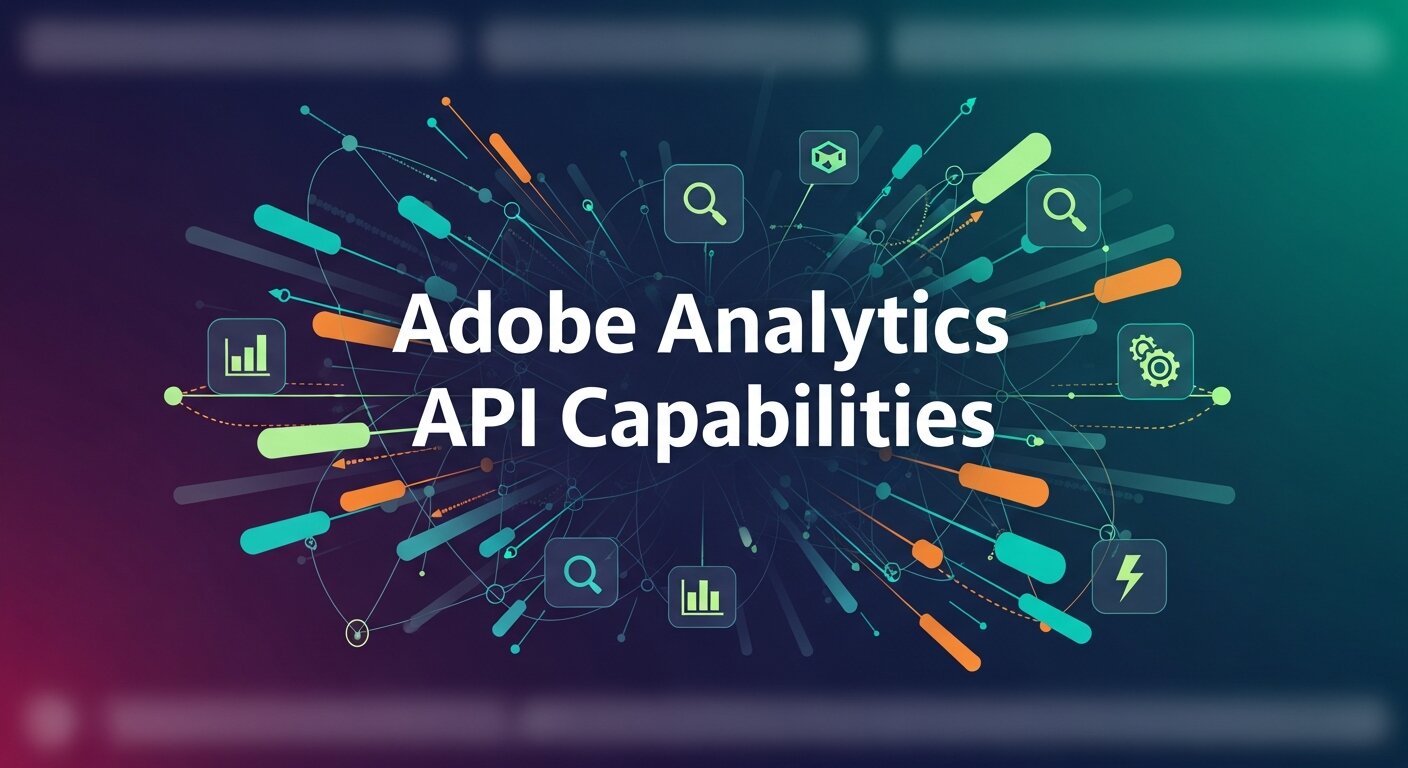
Adobe Analytics provides users with a plethora of API endpoints to support their analytics and reporting needs. Here’s a quick rundown of what these APIs can do:
1. Reporting API
This enables access to raw data for advanced analysis. You can pull metrics, dimensions, and segment-specific data programmatically to build custom reports.
2. Data Feed API
The Data Feed API allows you to retrieve large-scale raw data for external use. This is highly valuable for data scientists looking to perform big-data analysis using tools like Python, R, or SQL.
3. Real-time API
For those needing real-time insights, Adobe offers an API for streaming live data. Businesses can act on user behavior almost instantaneously, optimizing campaigns in the moment.
4. Admin API
This API is used for administrative tasks, such as creating and managing report suites, segments, and calculated metrics.
5. Data-insertion API
It also allows the programmatic entry of event data into Adobe Analytics, letting you capture offline or custom events easily.
The combination of these APIs ensures a high degree of flexibility when it comes to shaping Adobe Analytics to fit your organizational requirements.
Step-by-Step Guide to Implementing Adobe Analytics APIs
Starting with APIs may seem daunting, but following these steps will keep things manageable:
Step 1: Access Your API Credentials
Before using any API, you need API credentials. Log in to Adobe Developer Console, create a project, and connect it to your Adobe Analytics account to retrieve your Client ID and Client Secret.
Step 2: Understand Your Use Case
What do you need from the API? Are you building dashboards, creating automated reports, or enabling real-time data analysis? Knowing your use case ensures you pick the right Adobe API for the task.
Step 3: Learn the Basics of API Requests
Familiarize yourself with REST or GraphQL API queries. Each API call includes:
- Authorization headers (use Bearer tokens generated in Adobe Developer Console)
- API endpoints (links to specific data resources)
- Query parameters or payloads
Step 4: Make Your First API Call
Use a tool like Postman to structure and test your API calls. Start small by querying basic data, such as a single metric or dimension.
Step 5: Integrate into Systems
Once tested, integrate Adobe API calls into your technology stack, such as business intelligence tools (Tableau, Power BI) or scripts written in Python or JavaScript.
Step 6: Automate
Scripts or tools can be scheduled to query APIs periodically, automating processes for reporting or data pipeline creation.
For more detailed instructions, Adobe provides API documentation through its Developer Console.
Best Practices for API Integration
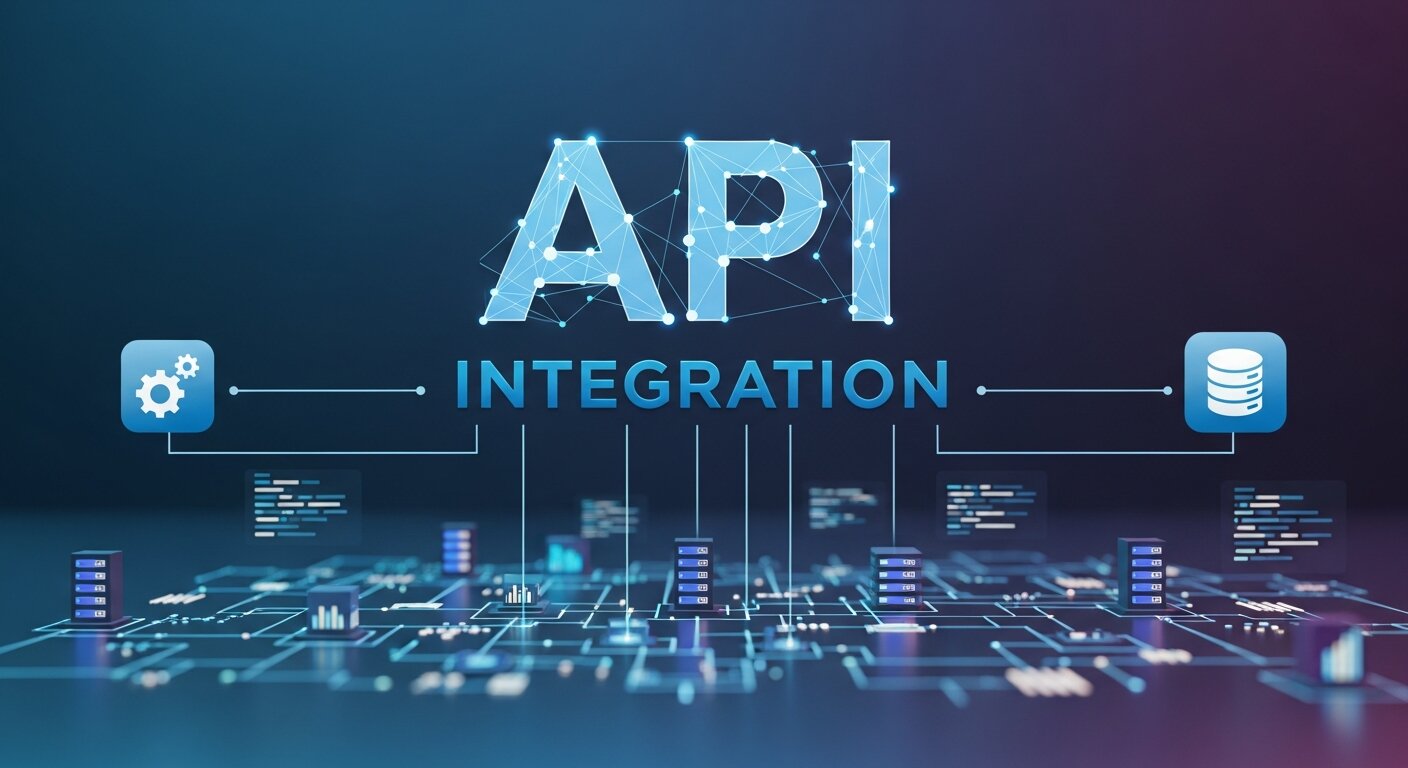
To ensure smooth API integration, follow these best practices:
- Use Efficient Queries: Limit the number of variables, metrics, or dimensions to reduce response latency.
- Monitor API Usage Limits: Adobe APIs have quotas, so track your calls to avoid disruptions.
- Secure Your API Keys: Keep access credentials hidden to prevent misuse. Consider using a secure token management system.
- Test Your Code: Always test API calls in multiple scenarios to confirm you’re getting accurate results.
- Stay Updated: Adobe frequently updates its API parameters, so periodically review the API documentation to adjust for changes.
Troubleshooting Common API Issues
While powerful, APIs can occasionally involve pain points. Below are some of the most common challenges and ways to address them:
- Authentication Errors
Double-check your Client ID, Client Secret, and Bearer Token. Ensure that tokens are not expired.
- Data Accuracy Concerns
Mismatched metrics or errors in data extraction could be due to improper configurations. Cross-check your queries against the Adobe interface.
- API Rate Limits
If you’re hitting usage caps, optimize queries to retrieve only necessary data. You could process data in batches to stay within limits.
- System Downtime
Monitor Adobe API status pages to confirm if there are platform outages affecting your calls.
Real-World Examples and Use Cases of Adobe Analytics APIs
1. Building Custom Dashboards
Digital marketers can use the Reporting API in tools like Tableau or custom-built dashboards to highlight KPIs, such as conversion rates, revenue, or engagement metrics, in one place.
2. Automating Campaign Reporting
Web analysts often use APIs to export campaign performance metrics and automatically generate weekly or monthly dashboards, saving time and manual effort.
3. Enhancing User Experience
Businesses use the Real-time API to track customer actions and dynamically update their websites with tailored recommendations and content.
4. Advanced Data Science
Data scientists extract raw data via the Data Feed API for deeper analysis. For example, they can use machine learning algorithms to predict future trends in user behavior based on historical data.
5. IoT Data Integration
Data insertion APIs play a role in integrating offline or IoT device data. For example, a retailer might upload in-store purchase data to Adobe Analytics for a more unified customer profile.
Why Adobe Analytics APIs are the Future of Business Intelligence
Using Adobe Analytics APIs is now simply a must for enterprises that want to keep pace with their competitors. By targeting workflows such as report automation to real-time insights, these APIs help marketers, analysts, and data scientists do less busy work so they can focus on the big picture.
Practice is the mother of skill. Initially, roll out to a few APIs in your workflows before you expand it. The upside in terms of effort, enrichment and business intelligence in the context of efficiency is tremendous.
If you are ready to integrate Adobe Analytics API into your business, now is the time to make the leap. Begin small, be consistent, and see your analytics environment grow.
Integrating Adobe Analytics with Broader Marketing Technology

Modern enterprises rely on interconnected marketing ecosystems rather than isolated tools. Adobe Analytics APIs make it possible to connect analytics data with CRM systems, automation platforms, and advertising channels to create a unified data environment. When integrated properly, analytics insights can power smarter segmentation, personalization, and attribution modeling. For organizations using Customer Data Platforms, API connectivity ensures behavioral data flows seamlessly across systems, creating richer audience profiles. This unified structure improves targeting accuracy and enhances campaign performance. Instead of siloed reporting, businesses gain a 360-degree view of customer interactions, enabling strategic decision-making based on complete, real-time datasets rather than fragmented information scattered across multiple platforms.
Strengthening Data Strategy with Advanced Analytical Skills
Implementing APIs is only part of the equation; extracting meaningful insights requires strong analytical capabilities. Organizations that invest in upskilling their teams gain significantly more value from Adobe Analytics integrations. Professionals trained through a Data Analysis Bootcamp often develop hands-on expertise in interpreting large datasets, building predictive models, and designing performance dashboards. When combined with API automation, these skills allow teams to move beyond surface-level metrics and uncover actionable trends. Instead of simply reporting numbers, analysts can identify behavioral patterns, forecast performance outcomes, and recommend strategic adjustments. This alignment between technical integration and analytical proficiency maximizes the overall return on analytics investments.
Leveraging Advanced Techniques for Deeper Insights
APIs unlock raw data access, but competitive advantage comes from how effectively that data is interpreted. By applying structured Data Analysis Techniques such as cohort analysis, regression modeling, funnel visualization, and predictive forecasting, businesses can uncover insights that go far beyond standard dashboards. These techniques help identify customer churn patterns, optimize conversion pathways, and evaluate campaign performance with greater precision. When supported by automated API data extraction, advanced analytical methods can run continuously, producing ongoing strategic intelligence. This allows decision-makers to respond proactively to trends rather than reacting after performance declines. Ultimately, combining automation with analytical depth drives smarter and faster business decisions.
Scaling Enterprise Reporting and Automation
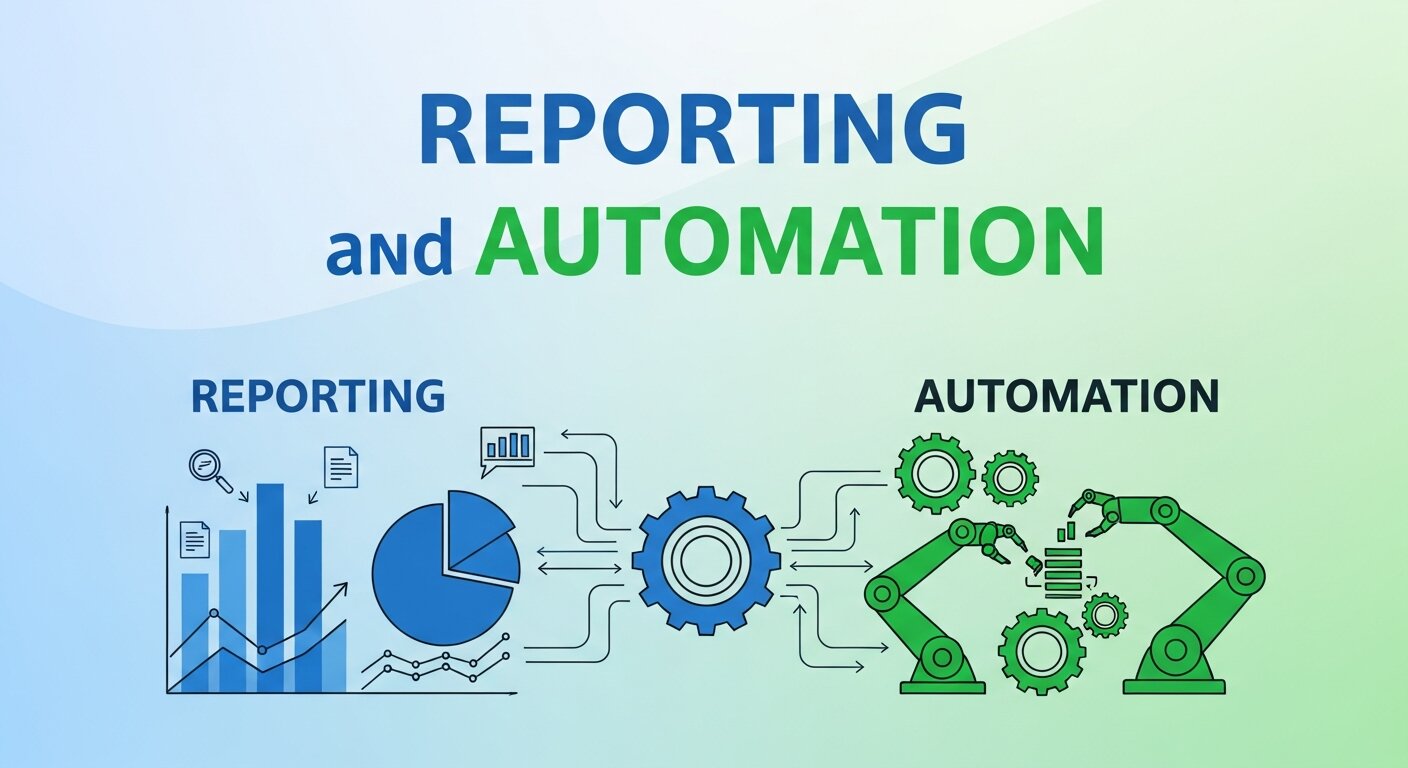
As organizations grow, manual reporting processes quickly become inefficient and error-prone. Adobe Analytics APIs enable scalable automation frameworks that handle increasing data volumes without sacrificing accuracy. Scheduled API calls can feed data warehouses, power executive dashboards, and trigger performance alerts automatically. This scalability ensures consistency in reporting across departments and regions. Enterprises can standardize KPIs, maintain governance controls, and reduce dependency on manual exports. Additionally, automated workflows free analytics teams to focus on strategic initiatives instead of repetitive tasks. By designing API-driven reporting infrastructures early, businesses create a sustainable analytics foundation capable of supporting long-term growth and evolving digital strategies.
Frequently Asked Questions (FAQ)
1. Does Adobe Analytics support REST APIs?
Yes, Adobe Analytics primarily supports REST-based APIs. These APIs allow developers to send HTTP requests to retrieve reports, manage administrative settings, insert data, and automate workflows. REST APIs are widely used because they are lightweight, scalable, and easy to integrate with various programming languages such as Python, JavaScript, and Java. Adobe’s modern API framework (Adobe I/O) is built around REST principles, making it flexible for enterprise-level integrations.
2. Do I need coding knowledge to use Adobe Analytics APIs?
Basic technical knowledge is highly recommended. While tools like Postman make testing API calls easier, integrating APIs into dashboards, automation scripts, or data pipelines typically requires familiarity with programming concepts. Knowledge of REST APIs, JSON formatting, and authentication methods (OAuth or JWT) will help significantly. However, many businesses work with developers or data engineers to handle technical implementation while analysts focus on insights.
3. How do I authenticate Adobe Analytics API requests?
Authentication is handled through the Adobe Developer Console. After creating a project, you receive credentials such as a Client ID and Client Secret. API calls require an access token (Bearer token) included in the request headers. Tokens expire periodically, so automated systems must refresh them programmatically to maintain uninterrupted access.
4. Are there rate limits on Adobe Analytics APIs?
Yes, Adobe enforces API rate limits to ensure platform stability. The exact limits depend on your contract and usage tier. If you exceed your quota, requests may be throttled or temporarily blocked. To avoid this, optimize queries by requesting only necessary metrics and batching large data pulls instead of sending frequent small requests.
5. Can Adobe Analytics APIs integrate with BI tools?
Absolutely. Adobe Analytics APIs integrate seamlessly with business intelligence platforms such as Tableau, Power BI, and custom dashboards. Many organizations use APIs to automate data exports into their BI tools, enabling real-time performance tracking, campaign monitoring, and executive reporting without manual downloads.
6. Is it possible to insert offline data using APIs?
Yes. The Data Insertion API allows businesses to upload offline events, CRM data, or even IoT-generated data directly into Adobe Analytics. This creates a more unified customer profile by combining online and offline interactions within a single analytics ecosystem.
7. How secure are Adobe Analytics APIs?
Adobe uses secure authentication protocols and encrypted connections (HTTPS) to protect API communications. However, organizations must also follow best practices such as securely storing credentials, rotating tokens regularly, and restricting access permissions to prevent unauthorized usage.
8. Where can I find official documentation?
Adobe provides comprehensive API documentation within the Adobe Developer Console. The documentation includes endpoint references, authentication instructions, request examples, and error-handling guidelines to support both beginners and advanced developers.