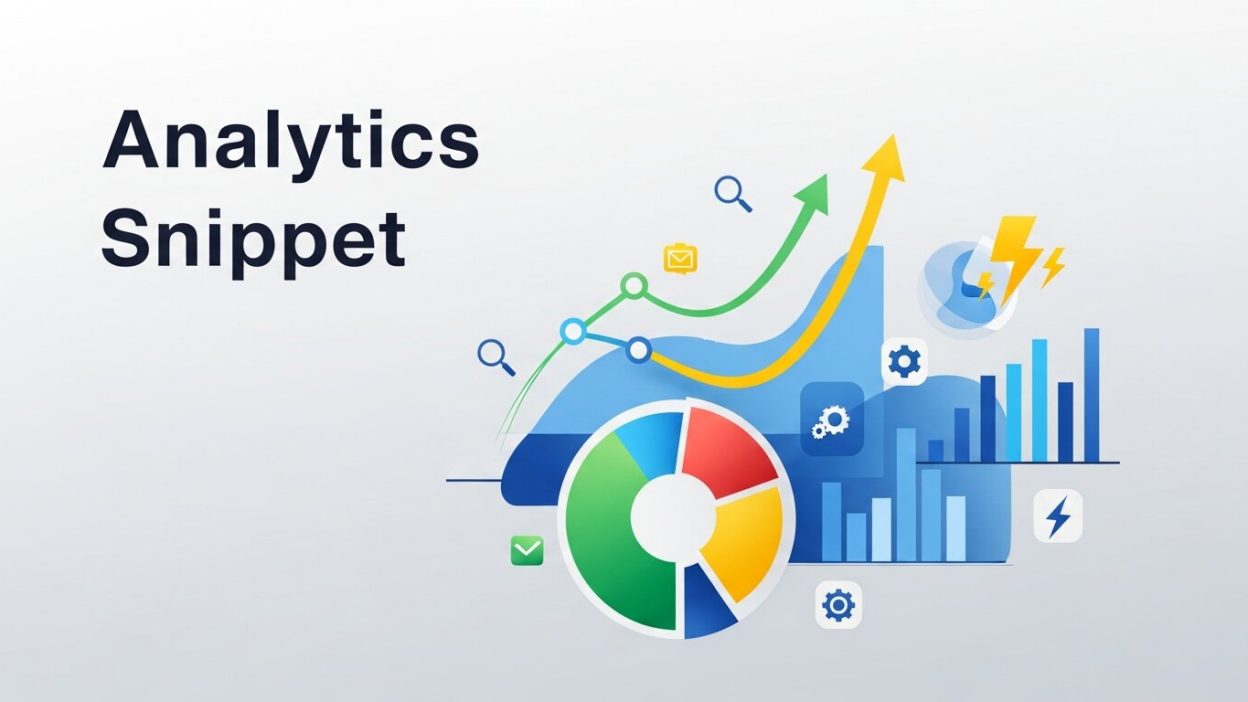
Website owners and digital marketers of all levels of experience can benefit from a tool like Google Analytics. If provides the quick insight you need to understand your audience, identify performance trends and refine your digital approach. Essentially, this tool is based on the “Google Analytics snippet”— a little snippet of code that links your website with Google Analytics.
If you’re wondering what this snippet is or how to use it, read on! In this blog, we will go over all that’s there to know about Google Analytics snippets including what they are, how they work, how you can install them, resolve them when they misbehave and best practices to make the most of them.
By the end of this tutorial you’ll be acquainted with not only the snippet but how to use it to your advantage for insights toward your website’s success.
Why is Google Analytics Important?
Google Analytics is so much more than a tracking tool; it’s like a window into how customers behave. It allows you to find key stats like number of website visitors, user engagement, and conversion rates. This information will help in optimizing your marketing efforts, targeting the right audience, and ultimately enhancing the user experience of your website.
But before you can start seeing the results, you have to insert the Google Analytics code on your site. This small piece of code does all the heavy-lifting for you so that Google can gather and study data from your site.
What is a Google Analytics Snippet?
The Google Analytics snippet is a piece of JavaScript (often known as a tag) that you can insert into your website to enable Google Analytics to begin collecting data. Its purpose? For example to gather user information such as page views, enquiries, bounce rates and more and report this data back to your Google Analytics dashboard.
Anytime someone engages with your site, the snippet captures and logs that engagement. That means you’re able to analyse how users are behaving and accordingly make your website better.
Consider that snippet to be a middleman that makes your site talk to Google Analytics. This snippet is required, otherwise Google Analytics can’t collect data on your site.
How Does the Google Analytics Snippet Work?
The script does this by inserting some JavaScript into your website’s header. Every time someone comes to your site, the snippet runs, collecting information and sending it on to your Google Analytics account for analysis.
It records a variety of different metrics such as time on site, pages-per-session, and even custom events such as video plays or form submits depending on how you’ve set the tool up.
Types of Google Analytics Snippets
Google Analytics has evolved over the years, and so have its snippets. Below are the most common types of snippets you’ll come across:
1. Universal Analytics (UA) Snippet
Universal Analytics has been the go-to version for years. Its snippet uses the analytics.js library and is designed for traditional data tracking.
2. Google Analytics 4 (GA4) Snippet
The modern GA4 snippet uses the gtag.js library and is designed to streamline tracking across multiple platforms, including websites and mobile apps. GA4 introduces advanced event-based tracking.
3. Google Tag Manager Integration
Instead of directly embedding the Analytics snippet into your website, you can also manage it via Google Tag Manager (GTM), a tool that simplifies tag management across your website.
When using GTM, you don’t directly place the Analytics snippet; instead, you create a tag in GTM that inserts it for you.
How to Find Your Google Analytics Snippet
Finding your Google Analytics snippet is straightforward. Here’s how you can access it in both Universal Analytics and GA4 accounts:
For Universal Analytics (UA):
- Go to your Google Analytics Admin panel.
- Under the “Property” section, click Tracking Info > Tracking Code.
- Your tracking ID and snippet will appear on this page.
For Google Analytics 4 (GA4):
- Navigate to the Admin section in your Google Analytics account.
- Select your Data Streams under the Property section.
- Click the Data Stream of your website.
- Your measurement ID and snippet will be displayed.
Step-by-step Guide to Installing the Snippet on Your Website
Installing the snippet is essential to start collecting data. Follow this guide to set it up properly:
1. Copy Your Snippet
Log in to your Google Analytics account and copy the snippet associated with your property.
2. Insert the Snippet into Your Website’s Header
- Open your website’s HTML file or access it through your CMS (like WordPress).
- Locate the <head> section of your website’s code.
- Paste the snippet directly before the closing </head> tag.
3. Save and Publish
Save and publish the changes to your website to activate the snippet.
4. For Google Tag Manager Users
If you’re using Google Tag Manager, set up your GA tag there instead of embedding the snippet directly.
Verifying Snippet Installation
Once installed, you’ll want to ensure the snippet is working correctly.
- Use Google Tag Assistant
Install Google Tag Assistant (a browser extension) to verify if your snippet is firing correctly.
- Check Real-Time Reports
Go to the Real-Time section of your Google Analytics dashboard. Open your website in another tab and trigger an interaction. If data appears in real-time, your snippet is working!
Troubleshooting Common Issues

- No Data in Google Analytics
Ensure you copied the correct snippet and placed it in the <head> section of every webpage.
- Multiple Snippets
Duplicate snippets can cause tracking errors. Check for conflicts and remove any additional analytics code.
- Browser Cache
Clear your browser cache if updates to the snippet don’t seem to take effect.
Best Practices for Using Google Analytics Snippets
- Use Google Tag Manager
Tag Manager simplifies snippet management, especially if your website requires multiple tracking codes.
- Test Regularly
Make it a habit to test your snippet using real-time data or debugging tools.
- Stay Up-to-date
Google frequently updates its tools. Consider switching to GA4 for access to the latest features.
- Set Custom Goals
Define goals in your Analytics dashboard to track essential conversions like email sign-ups or online purchases.
Leverage Analytics for Success
Now that you understand what a Google Analytics snippet is and how to set it up, it’s time to make the most of your data. With the insights from Analytics, you can refine your digital strategy, deliver a better user experience, and ultimately achieve your business goals.
For more resources on how to optimize your website and master Google Analytics, bookmark our blog or reach out for expert guidance.
Turning Website Data Into Actionable Insights
Installing the tracking snippet is only the first step; the real value comes from interpreting the data it collects. Website metrics such as bounce rate, session duration, and traffic sources provide powerful insights when analyzed properly. Small and medium-sized businesses can especially benefit from Predictive Analytics for SMBs, which helps forecast trends and customer behavior based on historical data. By identifying patterns early, you can optimize campaigns, allocate budget more effectively, and personalize user experiences. Rather than reacting to performance dips, predictive insights allow you to proactively adjust strategies. Over time, this data-driven approach leads to smarter marketing decisions and sustainable growth.
Integrating Analytics With Other Marketing Tools
Google Analytics becomes even more powerful when integrated with your broader marketing ecosystem. By connecting it with email platforms, CRM systems, and ad accounts, you can gain a unified view of customer journeys. Many businesses enhance their insights further by syncing Analytics data with Customer Data Platforms, which consolidate information from multiple touchpoints into a single customer profile. This holistic visibility allows you to understand how users interact across channels before converting. With better integration, marketing teams can refine audience segmentation, improve retargeting strategies, and personalize messaging. Ultimately, combining analytics with other tools transforms raw data into meaningful customer intelligence.
Training Your Team to Understand Analytics
Having access to data is one thing; knowing how to interpret it is another. Many organizations struggle because their teams lack the skills to translate metrics into strategic actions. Investing in structured learning opportunities, such as a Data Analysis Bootcamp, can significantly improve internal capabilities. When team members understand how to read dashboards, set up custom reports, and analyze user behavior, they become more confident in making informed decisions. Training ensures that analytics is not confined to a single specialist but becomes a shared organizational strength. Empowered teams can identify performance gaps quickly and implement improvements without unnecessary delays.
Custom Event Tracking for Deeper Insights
Basic pageview tracking is helpful, but advanced insights come from setting up custom events. Event tracking allows you to measure specific user interactions such as button clicks, video views, file downloads, or form submissions. By defining these events clearly, you gain a deeper understanding of what actions truly drive conversions. This level of tracking enables you to identify high-performing content and optimize underperforming elements. Custom events also help refine your sales funnel by pinpointing where users drop off. With this granular data, you can continuously improve user experience, enhance engagement, and increase conversion rates through precise, evidence-based adjustments.
Ensuring Compliance and Data Privacy
As data collection becomes more advanced, maintaining compliance with privacy regulations is critical. Laws such as GDPR and CCPA require transparency in how user data is collected and processed. Website owners must implement proper cookie consent banners and provide clear privacy policies explaining tracking practices. Additionally, anonymizing IP addresses and limiting unnecessary data collection can reduce compliance risks. Responsible data handling not only protects your business legally but also builds trust with your audience. Users are more likely to engage with websites that respect their privacy. A compliant analytics setup ensures you gain insights ethically while maintaining credibility and customer confidence.
Creating Data-Driven Growth Strategies

The ultimate goal of implementing a tracking snippet is to fuel long-term growth. By consistently reviewing performance reports, identifying trends, and testing improvements, you can build a structured optimization process. Use A/B testing to experiment with landing pages, calls-to-action, and content layouts. Monitor traffic sources to determine which channels generate the highest ROI. Over time, this systematic evaluation helps you refine marketing campaigns and allocate resources strategically. A data-driven growth strategy reduces guesswork and enhances efficiency. Instead of relying on assumptions, you make decisions backed by measurable insights, leading to improved performance and sustained business success.
Frequently Asked Questions (FAQ)
1. What is a Google Analytics snippet?
A Google Analytics snippet is a small piece of JavaScript code that you add to your website. It enables Google Analytics to collect data about visitor behavior, such as page views, session duration, bounce rate, and conversions.
2. Where should I place the Google Analytics snippet?
The snippet should be placed inside the <head> section of your website’s HTML code, just before the closing </head> tag. This ensures it loads properly on every page.
3. What happens if I don’t install the snippet correctly?
If the snippet is missing, placed incorrectly, or duplicated, Google Analytics may not collect accurate data. This can result in missing traffic reports, incorrect metrics, or tracking errors.
4. What is the difference between Universal Analytics and GA4 snippets?
Universal Analytics (UA) used the analytics.js library and focused on session-based tracking. Google Analytics 4 (GA4) uses the gtag.js library and is built on an event-based tracking model, offering more advanced cross-platform insights.
5. Can I use Google Tag Manager instead of placing the snippet directly?
Yes. Google Tag Manager (GTM) allows you to manage your Analytics tracking code without editing your website’s source code repeatedly. It simplifies tag management and reduces the risk of errors.
6. How can I check if my Google Analytics snippet is working?
You can verify installation by:
-
Checking the Real-Time report in your Google Analytics dashboard
-
Using tools like Google Tag Assistant
If you see live activity when visiting your site, the snippet is working correctly.
7. Do I need to add the snippet to every page?
Yes. The snippet must be present on every page you want to track. If your website uses a common header template, adding it there will automatically apply it across all pages.
8. Can multiple Google Analytics snippets cause issues?
Yes. Installing multiple tracking codes on the same page can lead to duplicate data, inflated metrics, and reporting inaccuracies. Always ensure only one active tracking code is implemented per property.
9. Is Google Analytics 4 mandatory now?
Google has officially transitioned from Universal Analytics to GA4 as its primary platform. New users should implement GA4 to access the latest tracking features and updates.
10. Is the Google Analytics snippet secure?
Yes. The snippet itself is secure and does not harm your website. However, you should ensure your website complies with data privacy regulations like GDPR or CCPA by displaying proper cookie consent notices where required.